
Crop & canvas
Four operations change which pixels are kept or added without scaling them: extract cuts a rectangle, extend adds canvas, trim removes a uniform border, and smartCrop cuts a window around the most interesting region. The sample images are the 1600 × 1000 landscape and the 400 × 400 emblem (with transparent corners).
extract
Section titled “extract”extract(x:y:width:height:) returns the rectangle whose top-left corner is (x, y).
let image = try Hokusai(url: URL(fileURLWithPath: "scene.png"))
// Coordinates count from the top-left corner of the image *as it is at this point*.try await image    .extract(x: 1000, y: 120, width: 400, height: 560)    .png()    .write(to: URL(fileURLWithPath: "lighthouse.png"))
// After a resize, the same numbers address a different part of the picture.try await image    .resize(width: 800)    .extract(x: 1000 / 2, y: 120 / 2, width: 400 / 2, height: 560 / 2)    .png()    .write(to: URL(fileURLWithPath: "lighthouse-after-resize.png"))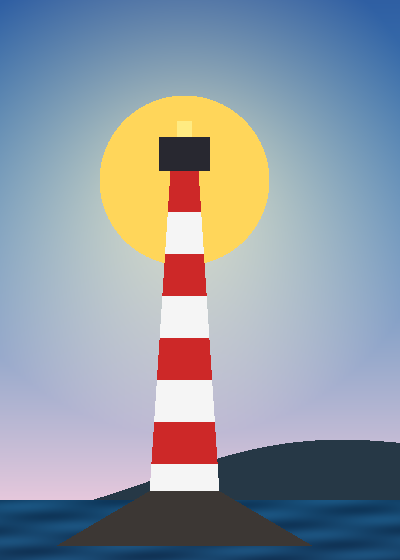
on the originalPNG · 400 × 560 · 67 KB 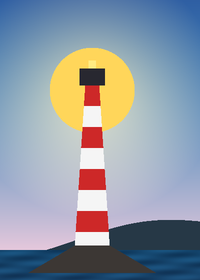
after resizePNG · 200 × 280 · 46 KB
| Parameter | Type | Bounds |
|---|---|---|
x, y |
Int |
0…10,000,000 |
width, height |
Int |
1…2,147,483,647 |
Coordinates count from the top-left of the image as it is at that point of the pipeline. The same numbers after a resize address different pixels, so scale them too (above, the second call halves every number). A rectangle that reaches outside the image is not clipped: it fails when the pipeline is evaluated (see Limits).
extend
Section titled “extend”extend only adds canvas. It has three forms.
extend(to:anchor:background:): grow to an exactImageSize, placing the image atanchor(aGravity:.center, the four sides or the four corners) and filling with a colour. The default background is transparent.extend(to:anchor:mode:): the same, filled according to anExtendMode.extend(top:left:bottom:right:mode:): add that many pixels on each side (0…10,000,000).
ExtendMode is .background(Color), .copy (repeat the nearest edge pixel outwards), .repeat (tile the image) or .mirror (tile it, mirroring every other tile).
let emblem = try Hokusai(url: URL(fileURLWithPath: "emblem.png")).resize(width: 160)let paper = Color(red: 0.96, green: 0.94, blue: 0.88)
// To an exact size, anchored, filled with a colour.try await emblem.extend(to: ImageSize(width: 320, height: 200), anchor: .west, background: paper)    .png().write(to: URL(fileURLWithPath: "to-size.png"))
// Padding on each side, filled by the image's own edge pixels.let modes: [(String, ExtendMode)] = [("copy", .copy), ("repeat", .repeat), ("mirror", .mirror)]for (name, mode) in modes {    try await emblem.extend(top: 40, left: 40, bottom: 40, right: 40, mode: mode)        .png().write(to: URL(fileURLWithPath: "\(name).png"))}
to a size, .westPNG · 320 × 200 · 9 KB 
.copyPNG · 240 × 240 · 8 KB 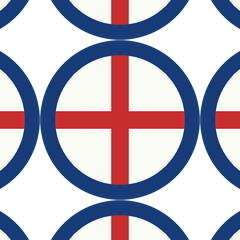
.repeatPNG · 240 × 240 · 12 KB 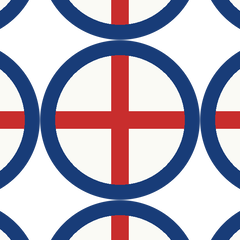
.mirrorPNG · 240 × 240 · 12 KB
The new area is filled; the image’s own pixels are not touched, so transparent parts of the original stay transparent even when the background is a colour. Fill them with flatten if that is not what you want. To grow and scale to a fixed box, use resize(fit: .contain) instead.
trim removes a border of nearly uniform colour. trim(threshold:) is the short form; trim(_ options: TrimOptions) adds control:
TrimOptions |
Default | Meaning |
|---|---|---|
threshold |
10 |
Tolerance for treating a pixel as background; lower removes only nearly identical borders. Must be finite and ≥ 0. |
background |
.topLeft |
The colour to remove: the top-left pixel at that point of the pipeline, or .color(Color) (grey or RGB images). |
lineArt |
false |
Detect borders in line art and synthetic images by strong edges instead of colour difference. |
margin |
0 |
Pixels of background to keep around the content (clamped to the image). |
// Add a plain border first, so there is something to trim.let framed = try Hokusai(url: URL(fileURLWithPath: "emblem.png"))    .resize(width: 200)    .extend(top: 30, left: 60, bottom: 30, right: 60,            mode: .background(Color(red: 1, green: 1, blue: 1)))
try await framed.png().write(to: URL(fileURLWithPath: "framed.png"))try await framed.trim().png().write(to: URL(fileURLWithPath: "trimmed.png"))
// Keep a margin of the background around the detected content.try await framed.trim(TrimOptions(margin: 12)).png()    .write(to: URL(fileURLWithPath: "trimmed-margin.png"))
inputPNG · 320 × 260 · 11 KB 
trim()PNG · 200 × 200 · 9 KB 
margin: 12PNG · 224 × 224 · 10 KB
The scan runs when the pipeline is evaluated, not when trim is called, and an image that is entirely background is left unchanged rather than cropped to nothing. Because the background is the top-left pixel, an image whose corner is part of the subject (such as the emblem’s transparent corner) is trimmed by what that corner looks like; flatten onto a known colour first when in doubt.
smartCrop
Section titled “smartCrop”smartCrop(width:height:strategy:) cuts a width × height window of the original pixels, without resizing, around the region chosen by the strategy: .attention (skin tones, saturated colour, detail; the default) or .entropy (most local variation).
let image = try Hokusai(url: URL(fileURLWithPath: "scene.png"))
// smartCrop crops without resizing: it keeps a 500 × 500 window of the original pixels.for (name, strategy) in [("attention", SmartCropStrategy.attention), ("entropy", .entropy)] {    try await image        .smartCrop(width: 500, height: 500, strategy: strategy)        .png()        .write(to: URL(fileURLWithPath: "\(name).png"))}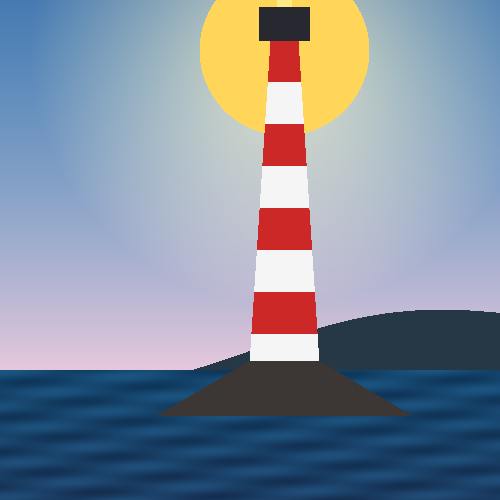
.attentionPNG · 500 × 500 · 70 KB 
.entropyPNG · 500 × 500 · 25 KB
To scale and crop in one step use resize(fit: .cover, position: .attention), which makes the same selection (Resize). A window larger than the image is clamped to the image.
Limits
Section titled “Limits”let image = try Hokusai(url: URL(fileURLWithPath: "emblem.png")) // 400 × 400
func attempt(_ name: String, _ pipeline: () throws -> Hokusai) async { do { let output = try await pipeline().png().data() print(name, "→", output.info.width, "×", output.info.height) } catch { print(name, "→ throws", error) }}
await attempt("extract inside") { try image.extract(x: 100, y: 100, width: 200, height: 200) }await attempt("extract past the edge") { try image.extract(x: 300, y: 300, width: 200, height: 200) }await attempt("extend smaller") { try image.extend(to: ImageSize(width: 300, height: 300)) }await attempt("smartCrop larger") { try image.smartCrop(width: 900, height: 900) }await attempt("trim, nothing to trim") { try image.flatten(background: .white).trim() }| Call on a 400 × 400 image | Result |
|---|---|
extract(x: 100, y: 100, width: 200, height: 200) |
200 × 200 |
extract(x: 300, y: 300, width: 200, height: 200) |
throws HokusaiError.transform (extract), when evaluated |
extend(to: 300 × 300) |
throws HokusaiError.invalidOption (“extend cannot reduce an image”), when evaluated |
smartCrop(width: 900, height: 900) |
400 × 400: clamped |
trim() with nothing to trim |
400 × 400: unchanged |
Option values outside their bounds (a negative x, a zero width, a negative margin) throw HokusaiError.invalidOption when the pipeline is built, before any image is opened.
Related
Section titled “Related”- Resize, Rotate, flip & affine
- Order of operations: why
extractafterresizediffers from before