Channels & alpha
An image has colour channels and, optionally, an alpha channel that says how opaque each pixel is. These operations read, build and remove those channels.
Extract a channel
Section titled “Extract a channel”extractChannel(_:) keeps one channel as a grey image: .red, .green, .blue, .alpha or .luminance. The source is read as sRGB (a grey or CMYK source is converted first). Asking for .alpha of an image that has none throws HokusaiError.invalidOption when the pipeline is evaluated.
let image = try Hokusai(url: URL(fileURLWithPath: "scene.png")).resize(width: 360)
for (name, channel) in [("red", Channel.red), ("green", .green), ("blue", .blue), ("luminance", .luminance)] {    try await image.extractChannel(channel).png().write(to: URL(fileURLWithPath: "\(name).png"))}
// The alpha channel of an image that has one (the emblem's transparent corners are black).try await Hokusai(url: URL(fileURLWithPath: "emblem.png")).resize(width: 200)    .extractChannel(.alpha).png().write(to: URL(fileURLWithPath: "emblem-alpha.png"))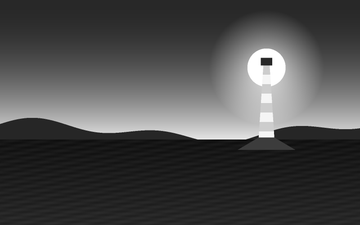
.redPNG · 360 × 225 · 15 KB 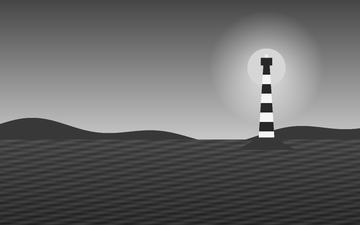
.greenPNG · 360 × 225 · 17 KB 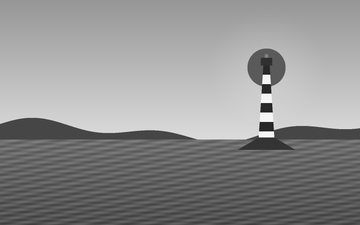
.bluePNG · 360 × 225 · 17 KB 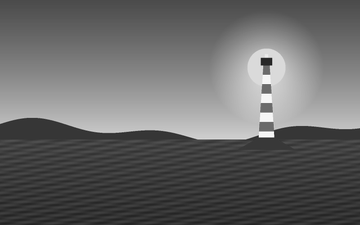
.luminancePNG · 360 × 225 · 17 KB 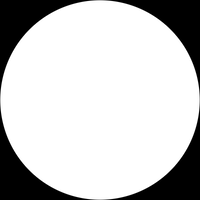
.alpha of the emblemPNG · 200 × 200 · 2 KB
Alpha from a mask
Section titled “Alpha from a mask”withAlpha(from:) uses the luminance of another pipeline as this image’s alpha: white keeps a pixel, black hides it. An existing alpha channel is replaced. The mask must come out the same size as the image, or the terminal throws; resize one of them first. Combine with extractChannel to move alpha from one image to another.
let photo = try Hokusai(url: URL(fileURLWithPath: "scene.png"))let mask = try Hokusai(url: URL(fileURLWithPath: "mask.png"))     // 1600 × 1000, black → white ramp
// White keeps a pixel, black hides it: the photo fades out towards the left.try await photo.withAlpha(from: mask).resize(width: 480).png()    .write(to: URL(fileURLWithPath: "faded.png"))
// The mask must be the same size as the image.do {    _ = try await photo.withAlpha(from: mask.resize(width: 800)).png().data()} catch {    print("size mismatch → throws", error)}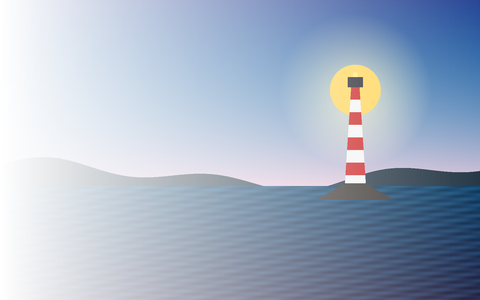
withAlpha(from: mask)PNG · 480 × 300 · 232 KB
The size mismatch above is reported as invalidOption(name: "mask", reason: "must be 1600×1000 like the image, but is 800×500; resize one of them first").
Removing and adding alpha
Section titled “Removing and adding alpha”| Operation | What it does |
|---|---|
flatten(background:) |
Composites over a solid colour (default .white) and removes alpha. Does nothing when there is no alpha. |
removeAlpha() |
Drops the alpha channel without compositing, so fully transparent pixels show their raw colour. Does nothing when there is no alpha. |
ensureAlpha(opacity:) |
Adds an alpha channel of constant opacity (0…1, default 1) when there is none; an existing alpha is left as it is. |
let emblem = try Hokusai(url: URL(fileURLWithPath: "emblem.png")).resize(width: 200)let paper = Color(red: 0.96, green: 0.94, blue: 0.88)
try await emblem.flatten(background: paper).png().write(to: URL(fileURLWithPath: "flatten.png"))// removeAlpha drops the channel without compositing: transparent pixels show their raw colour.try await emblem.removeAlpha().png().write(to: URL(fileURLWithPath: "remove-alpha.png"))
// ensureAlpha adds an opaque (or constant-opacity) channel when there is none.let opaque = try Hokusai(url: URL(fileURLWithPath: "scene.png")).resize(width: 200)let before = try await opaque.png().data()let after = try await opaque.ensureAlpha(opacity: 0.5).png().data()for (name, output) in [("scene-rgb", before), ("scene-half-alpha", after)] {    let meta = try await Hokusai(data: output.data).metadata()    print(name, "→ alpha:", meta.pixel.hasAlpha, "channels:", meta.pixel.channels)}try after.data.write(to: URL(fileURLWithPath: "half-alpha.png"))
// JPEG has no alpha, so the encoder needs it flattened.try await emblem.flatten(background: paper).jpeg(quality: 90).write(to: URL(fileURLWithPath: "emblem.jpg"))
flattenPNG · 200 × 200 · 9 KB 
removeAlphaPNG · 200 × 200 · 6 KB 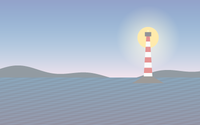
ensureAlpha(0.5)PNG · 200 × 125 · 27 KB 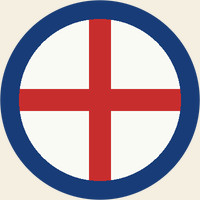
flatten, then JPEGJPEG · 200 × 200 · 13 KB
The program printed that the opaque landscape has 3 channels and no alpha, and 4 channels with alpha after ensureAlpha(opacity: 0.5).
removeAlpha is rarely what you want for graphics: the colour stored under transparent pixels is usually black (above), which appears as soon as the alpha is gone. Use flatten to choose the colour yourself.
JPEG needs flattening
Section titled “JPEG needs flattening”JPEG cannot store alpha. When you encode a transparent image as JPEG, flatten it onto a deliberate colour first (the last output above), or the transparent areas fall back to whatever the encoder does with the channel. See Order of operations.
Errors
Section titled “Errors”| Situation | Result |
|---|---|
extractChannel(.alpha) on an image with no alpha |
invalidOption, from the terminal method |
withAlpha(from:) with a mask of another size |
invalidOption (“mask … must be W×H like the image”), from the terminal method |
ensureAlpha(opacity:) or a layer opacity outside 0…1 |
invalidOption, thrown immediately |